How to check if your phone is already unlocked
Three simple ways to find out if your phone is carrier unlocked: the settings, a SIM test, and an IMEI check.
By Peter | Published | Last updated | 3 min read
You might be paying for a service you do not need. Lots of phones are already unlocked and their owners do not know. Here are three ways to find out, from easiest to most reliable.
Method 1: Look in the settings
iPhone: open Settings, then General, then About. Look for a line called “Carrier Lock” or “Network Provider Lock”. If it says “No SIM restrictions”, the phone is unlocked. If it names a restriction, the phone is locked. Newer iOS versions show this line. Older ones may not.
Android: the menu differs by brand. On many phones, go to Settings, then Connections or Network, then SIM manager or Mobile networks. Some show a lock status, many do not. On Samsung phones, there is no single standard place, so treat settings as a hint only.
The settings method is quick, but it is not always shown. If you cannot find the line, use the next method.
Method 2: Try a SIM from another carrier
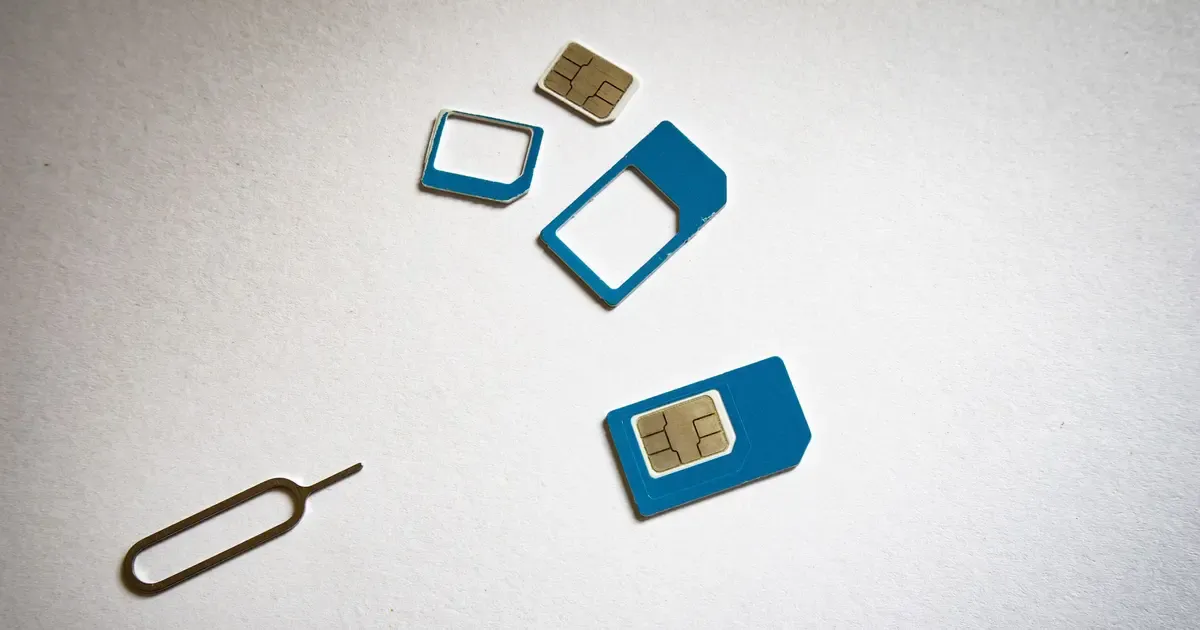
This is the most reliable way, and it needs nothing but a SIM.
- Borrow a SIM card from a friend on a different carrier. Make sure it is active and not damaged.
- Turn the phone off and swap the SIM.
- Turn the phone on and wait.
- Try to make a call, or send a message, or open a website on mobile data.
If it works, the phone is unlocked. If you see a message such as “SIM not supported” or a request for an “unlock code”, the phone is locked. Do not guess codes. Too many wrong tries can block the phone.
If the phone uses eSIM only, a borrowed SIM test is not possible. Then use a check by IMEI.
Method 3: Check the IMEI
An IMEI check reads what is known about your phone’s number. Use our free IMEI check. It shows the model, carrier and lock status for the IMEI. To find the number, dial *#06# or see our guide on finding your IMEI.
A free check is a good first step. It is not a replacement for a SIM test. Records can be out of date if the carrier unlocked the phone recently.
What the result means
- Unlocked. You can use any carrier that supports your phone. Check that the network bands match, which is a separate question from the lock.
- Locked. The phone only works with one carrier. You can ask that carrier to unlock it, see your carrier’s current policy, or use a paid unlock if that does not work.
- Cannot tell. Do a SIM test.
Unlocked but not working?
Sometimes a phone is unlocked but still has trouble. Reasons include a SIM that is not activated, a network that does not support the phone’s bands, an old SIM, or a blacklist flag. A blacklisted phone is different from a locked phone. See our guide on blacklisted iPhones.
If it is locked
Start with the carrier. For the three biggest, the official pages are AT&T, T-Mobile and Verizon. Check your carrier’s current policy. It is often free if you qualify.
If the carrier route is closed, for example because you left the carrier or bought the phone used, a paid unlock can help for eligible phones. We show eligibility, price and delivery time first, and refund you in full if it fails. We never unlock lost or stolen phones, and we do not remove iCloud, Activation Lock, FRP, MDM or Google account locks.
Summary
Check the settings, test a different SIM, and run an IMEI check. A SIM test gives the clearest answer.
Related guides
Unlocking
What happens to my phone when I unlock it?
What a carrier unlock changes, what it leaves alone, and what you might notice afterwards. Plain answers from the repair bench.
| 4 min read
Unlocking
What does carrier locked mean, and why do carriers lock phones?
A plain explanation of carrier locked phones, why carriers do it, what a lock does and does not do, and how to get out of it.
| 3 min read
Unlocking
How to find your IMEI on any phone
Every way to find the IMEI number on an iPhone, Android phone or tablet, even when the screen does not work.
| 3 min read